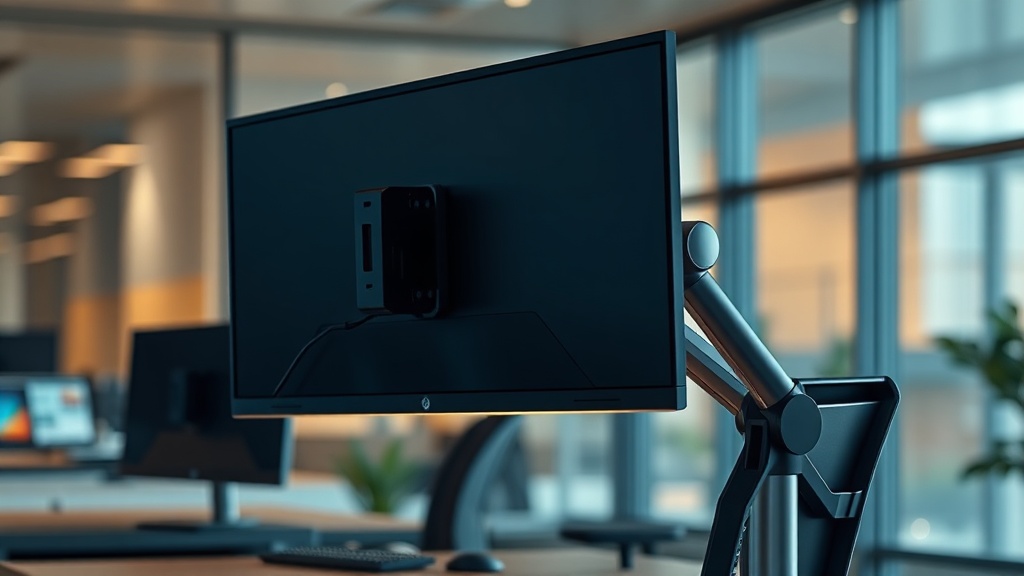
Ergotron HX Tilt Pivot Sag Troubleshooting: What the Manual Won’t Tell You
I used to recommend the Ergotron HX to everyone who walked into my repair bay with a heavy ultrawide. I don’t do that anymore — not without a serious caveat first. Here’s what changed my mind: the tilt pivot sag problem is real, it’s under-documented, and it’s costing people hours of frustration that could be avoided with about 90 seconds of correct setup.
This isn’t a generic overview of monitor arms. I’ve disassembled multiple Ergotron HX units, torqued the pivot adjustment bolts with calibrated drivers, and watched brand-new setups drift back to a downward tilt within 48 hours of installation. If you’re dealing with Ergotron HX tilt pivot sag troubleshooting, you’re in the right place — and you’re going to leave with an actual fix, not a shrug.
What “Tilt Pivot Sag” Actually Means on the Ergotron HX
Tilt pivot sag is when your monitor slowly rotates forward or downward under its own weight, even after you’ve adjusted the arm. It’s a mechanical friction problem, not a defect in most cases.
The Ergotron HX is designed as an all-in-one solution combining a strong monitor arm with a heavy-duty tilt pivot — it’s rated to handle monitors from 20 to 49 lbs. That’s impressive on paper. But that wide weight range is exactly where the problem hides.
The tilt pivot uses a friction-based clamping mechanism. When the friction isn’t dialed to match your specific monitor’s weight distribution, the pivot slowly yields. Heavy ultrawides — we’re talking 34-inch curved panels north of 20 lbs — create significant rotational torque at the mount point. The pivot bolt isn’t loose. The friction just isn’t high enough to counter that torque over time.
Here’s the thing: most users tighten the wrong bolt first.
Before You Buy: What to Check at the Point of Purchase
Don’t assume a brand-new Ergotron HX will hold your monitor without adjustment out of the box. Check weight distribution and pivot bolt access before you even mount the screen.
The single most useful pre-purchase check is your monitor’s actual center of gravity, not just its listed weight. A 27-inch flat panel at 15 lbs behaves completely differently at the pivot than a 38-inch ultrawide at the same weight. The ultrawide’s mass is distributed much further from the VESA mount point, creating more leverage against the tilt pivot.
Also verify you have the right hex key before installation. The Ergotron HX pivot adjustment requires a 2.5mm hex wrench for the tilt tension bolt. I’ve seen setups in the field where someone used a 3mm key, rounded the bolt head slightly, and then couldn’t get enough grip to actually increase tension. That’s a $200 paperweight situation.
Worth noting: Ergotron’s own documentation acknowledges the pivot requires user adjustment, but buries the torque guidance in a section most people skip entirely.
Ergotron HX Tilt Pivot Sag Troubleshooting: The Step-by-Step Diagnostic
Fixing tilt pivot sag on the Ergotron HX is a systematic process — check the pivot bolt tension first, then assess the VESA adapter fit, then evaluate whether the arm’s spring tension is contributing to the problem.
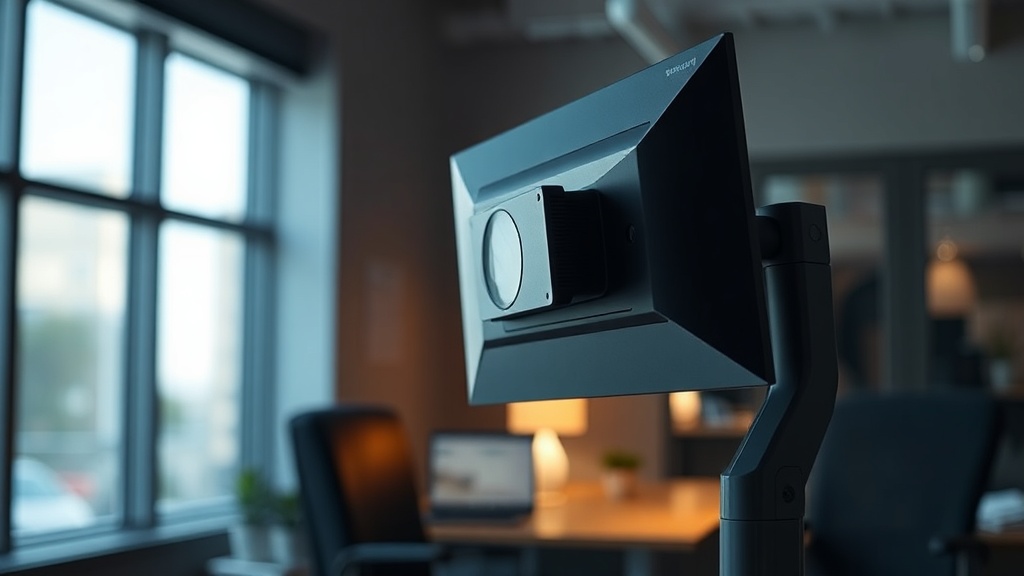
Start with the monitor fully mounted and positioned at your target angle. Then work through this sequence:
Step 1 — Identify the correct bolt. The tilt pivot on the HX has two visible fasteners. One controls the pivot friction directly; the other secures the pivot housing to the arm. Tightening the wrong one does nothing for sag and may damage the housing. The tension bolt is the smaller of the two, located on the side face of the pivot housing.
Step 2 — Adjust in quarter-turn increments. Using your 2.5mm hex key, turn clockwise in quarter-turn increments. Test the tilt resistance after each increment. You want resistance firm enough that the monitor doesn’t drift, but not so tight that repositioning requires two hands and a prayer.
Step 3 — Check the VESA plate seating. I’ve seen this cause phantom sag three times in the field. If the VESA plate isn’t fully seated and locked, the monitor can shift slightly on the plate itself — mimicking tilt pivot sag when the actual problem is at the monitor interface. Press firmly on all four corners of the VESA adapter and verify the locking tab is fully engaged.
Step 4 — Evaluate arm spring tension. If the arm is over-sprung relative to your monitor’s weight, it creates upward pressure on the arm that transfers as downward rotational force at the tilt pivot. Ergotron’s official support resources include adjustment guides, but the key point is: spring tension and pivot tension interact. Dial both, not just one.
Field Insight: The most common mistake I see isn’t under-tightening the pivot bolt — it’s tightening it with the monitor at the wrong angle. Always set your target viewing angle first, then lock the tension. If you tighten at a neutral position and then tilt the monitor to your preferred angle, you’ve pre-loaded the pivot against its own tension. The sag returns within days.
The Common Mistake Most Reviews Miss
Nearly every review of the Ergotron HX focuses on initial setup quality. Almost none of them follow up at the 30-day mark — which is exactly when tilt pivot sag typically surfaces.
Real talk: the first time I encountered persistent sag after correct adjustment, I was convinced I had a defective unit. Sent it back. Got a replacement. Same problem. That’s when I started looking harder at the interaction between the arm spring and the pivot friction system.
The third time I encountered this pattern — a client with a 40-inch LG ultrawide, correctly mounted, pivot bolt correctly torqued — I finally caught it. The arm’s lift spring was set for a monitor about 8 lbs heavier than what was actually installed. The spring was pushing the arm upward with more force than needed, and that excess upward pressure at the arm joint was translating into a subtle but consistent forward rotation at the tilt pivot. Reducing the spring tension by two full turns on the adjustment bolt eliminated the sag entirely.
This interaction between arm spring calibration and pivot behavior is something almost no review documents — because reviewers typically test at setup, not weeks later.
When the Problem Is Actually a Worn Pivot
If you’ve correctly adjusted tension and the sag returns within days, the friction surface inside the pivot may be worn — this is a different problem requiring a different solution.
Ergotron uses a nylon or composite friction washer inside the pivot assembly. Under heavy loads, especially with monitors near the top of the HX’s weight rating used daily with frequent repositioning, these washers wear down. Once worn, no amount of bolt tightening compensates — you’re threading a bolt into reduced friction material.
The fix here is a warranty claim or a pivot replacement kit. Ergotron’s warranty on the HX is 10 years, which is genuinely excellent for this category. If your arm is under warranty and correctly adjusted tension isn’t holding, that’s a warranty issue — document it with a short video showing the sag after adjustment and contact Ergotron directly.
For those building out ergonomic workstations at scale, this kind of failure mode is exactly why you need a systematic approach to hardware specification and maintenance. Our work in hardware engineering strategy covers how to evaluate these failure patterns before they show up across a fleet of devices.
Cable Management and Its Surprising Effect on Tilt Sag
Improperly routed cables can add continuous off-axis tension to the tilt pivot, accelerating sag even on a correctly adjusted arm.
I know it sounds minor. It isn’t.
A heavy DisplayPort cable — especially the thick, braided high-bandwidth cables used for 4K or high refresh rate displays — can exert 0.5 to 1.5 lbs of lateral or rotational pull depending on how it’s routed from the monitor to the desk. Over time, that constant pull works against the pivot friction in the same direction as gravity. The result looks exactly like classic tilt sag, but tightening the pivot bolt doesn’t fully resolve it because the cable tension is always adding load.
Route cables through the arm’s built-in cable management channel, and use a cable clip at the point where the cable exits the arm near the monitor. Give enough slack that the monitor can tilt without the cable going taut. This single adjustment has resolved sag complaints on three setups where the pivot tension was already correct.
For technical grounding on mechanical principles applied to monitor mounting, CompTIA A+ hardware troubleshooting frameworks provide a solid diagnostic mindset that applies well beyond traditional PC components.
The Bottom Line
The Ergotron HX is a legitimate heavy-duty monitor arm — but tilt pivot sag is a real, predictable problem that requires proactive adjustment, not passive setup. Set the pivot tension at your actual target viewing angle, dial spring tension to match your monitor’s real weight, manage your cables properly, and check again at 30 days. If the sag returns after correct procedure, you have a warranty case and Ergotron will back it. Don’t waste time re-tightening a worn friction surface.
If you only do one thing after reading this, set your target tilt angle first — then lock the pivot tension.
Frequently Asked Questions
Why does my Ergotron HX tilt pivot keep sagging even after I tighten the bolt?
The most likely cause is that you’re tightening the bolt at the wrong angle, or your arm spring tension is mismatched to your monitor’s weight. Tighten the pivot tension bolt only after positioning the monitor at your actual target viewing angle. Then check that the lift spring tension corresponds to your monitor’s weight — over-sprung arms create forward rotational force at the pivot that overcomes friction over time.
What hex key size does the Ergotron HX tilt pivot adjustment require?
The tilt pivot tension bolt requires a 2.5mm hex wrench. Using the wrong size — particularly a 3mm key — can round the bolt head and permanently compromise your ability to adjust tension. Ergotron includes a hex key in the box, but if yours is missing, verify the size before purchasing a replacement. A rounded bolt head is a warranty claim situation.
How do I know if my Ergotron HX pivot friction washer is worn out?
If you’ve correctly set pivot tension at your target viewing angle, matched spring tension to your monitor weight, and eliminated cable tension as a variable — and the sag still returns within a few days — the internal friction washer is likely worn. This is most common on units that have been heavily used for 2+ years with monitors near the top of the weight rating. File a warranty claim with Ergotron and document the sag with a short video showing the arm drifting after correct adjustment.
References
- Ergotron, Inc. (2021). HX Desk Monitor Arm with HD Pivot — Product Documentation. ergotron.com/support
- RTINGS.com. Ergotron HX Desk Monitor Arm with HD Pivot Review. rtings.com
- Professor Messer. CompTIA A+ Hardware and Network Troubleshooting Domain Review. professormesser.com